Emancipation Oak at Hampton University, Virginia

Computing in ecology and evolutionary biology

Rate yourself from 1 to 10 on this scale:

1

10

How do you conceptualize the research process?

What role do computers play in this process?


Today’s goal:

  • Identify opportunities for improving your computing habits to facilitate easier, faster, and more reproducible research
  • Identify tools and resources to help you develop and implement these habits

But like,…

But like, … why bother?

Computers as research tools: a case study

Within a few years, this work was used for framing national economic decisions, e.g. in the 2013 budget from the US Speaker of the House:

A well-known study completed by economists Ken Rogoff and Carmen Reinhart confirms this common-sense conclusion. The study found conclusive empirical evidence that gross debt (meaning all debt that a government owes, including debt held in government trust funds) exceeding 90 percent of the economy has a significant negative effect on economic growth.

— Paul Ryan’s 2013 “Path to prosperity” budget proposal

Link to full proposal

The paper was also shaped economic policy beyond the US.

“As Rogoff and Reinhart demonstrate convincingly, all financial crises ultimately have their origins in [public debt].”

British Member of Parliament George Osborne (who became Chancellor of the Exchequer)

But it turns out that computer misuse might underlie some results of the 2010 paper…

We were unable to replicate the RR results from the publicly available country spreadsheet data. […] Contrary to RR, average GDP growth at public debt/GDP ratios over 90 percent is not dramatically different than when debt/GDP ratios are lower.

Reinhart and Rogoff kindly provided us with the working spreadsheet from the RR analysis. With the working spreadsheet, we were able to approximate closely the published RR results.

From this spreadsheet, three sets of concerns:

  • Selective exclusion of available data and data gaps
  • Spreadsheet coding error
  • Unconventional weighting of summary statistics

Spreadsheet coding error:

A coding error in the RR working spreadsheet entirely excludes five countries, Australia, Austria, Belgium, Canada, and Denmark, from the analysis.

This spreadsheet error, compounded with other errors, is responsible for a −0.3 percentage point error in RR’s published average real GDP growth in the highest public debt/GDP category

Selective exclusion of available data and data gaps:

More significant are RR’s data exclusions with three other countries: Australia (1946–1950), New Zealand (1946–1949), and Canada (1946–1950).

The exclusions for New Zealand are of particular significance. This is because all four of the excluded years were in the highest, 90 percent and above, public debt/GDP category. Real GDP growth rates in those years were 7.7, 11.9, −9.9, and 10.8 percent. […] The exclusion of the missing years is alone responsible for a reduction of −0.3 percentage points of estimated real GDP growth in the highest public debt/GDP category.

Unconventional weighting of summary statistics:

After assigning each country-year to one of four public debt/GDP groups, RR calculates the average real GDP growth for each country within the group, that is, a single average value for the country for all the years it appeared in the category.

For example, real GDP growth in the UK averaged 2.4 percent per year during the 19 years that the UK appeared in the highest public debt/GDP category while real GDP growth for the US averaged −2.0 percent per year during the 4 years that the US appeared in the highest category.

Both were weighed equally in the final analysis, despite one country contributing 19 years of data, vs. 4 years for the other.

Summary of the replication attempt

  • Errors identified due to
    • Spreadsheet coding
    • Selective exclusion of available data and data gaps
    • Unconventional weighting of summary statistics

How can we do better?

Today’s goals

  • Identify opportunities for improving your computing habits to facilitate easier, faster, and more reproducible research
  • Identify tools and resources to help you develop and implement these habits

Installation

Everyone should have the following programs installed:

  • R (Version 4.5.1 or higher)
  • RStudio
  • Git
  • GitBash (if on Windows)

Today’s lesson plan

  • Data management 101 (~45 minutes)
  • Publication-ready graphics with ggplot (~60 minutes)
  • Project organization and management (~40 minutes)
  • Writing with quarto-markdown (~40 minutes)
  • Version control with Git (~40 minutes) OR

Acknowledgements

  • Much of the material in this workshop comes from Data Carpentry or Software Carpentry

  • All of the material in this workshop builds on open-source contributions to the computing ecosystem, thanks to people around the world.

Data management 101

Data audit

Note that for the following, consider “data” to mean any new knowledge you are generating as part of your project. This can include code, figures, samples, datasheets, etc.

  • What are the different sources of data in your project? (This means, in how many places are data collected that are relevant to your project?)
  • What are the different types of data in your project? (e.g. Climate data, genome sequences, abundance data, traits, etc.)
  • At this moment, where are all the data stored? What is their organizational structure?
  • At this moment, in what ways are the data backed up?
  • At this moment, how much “meta-data” exists to explain your data to a collaborator or an external evaluator?

Principles of data organization

  • Data should be easily understood by you, collaborators, evaluators (e.g. reviewers), and computers

  • Sometimes, organizational strategies that work well for humans don’t work well for computers

  • Develop good practices that make data legible to both humans and computers

Spreadsheet management

  • At some point in your career, you will almost inevitably manage data in a spreadsheet format
  • Remember that the spreadsheet is not a lab notebook. It is a special repository of information, with rules on how best data should be structured.
    • Otherwise, you might run into issues as in RR2010

Principles of spreadsheet management

  • Data on spreadsheets should have a “rectangular” format: rows and columns only
  • Avoid encoding information by color or in margin text
  • Columns for variables; rows for observations
  • Leave no cell blank – develop a explicit mechanism for NA/blank/unmeasured values

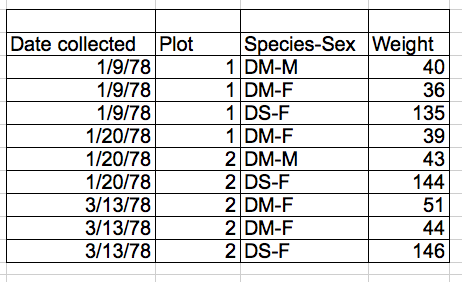
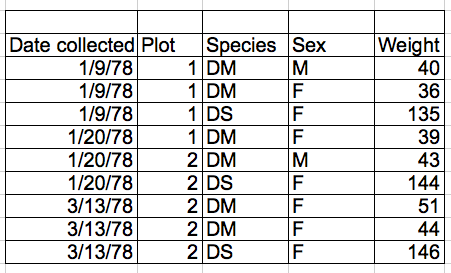
What is the issue?

Species and sex as separate columns

Exercise

  • In today’s workshop we will be using the Portal Project Teaching Dataset

  • This comes from a longrunning study in Arizona regarding rodent and ant impacts on plant communities

    • 40 year study, used in >100 publications to date!

Exercise

Let’s take a look at a “messy” version of a dataset that might be collected for a project like this.

Our dataset has two tabs. Two field assistants conducted the surveys, one in 2013 and one in 2014, and they both kept track of the data in their own way in tabs 2013 and 2014 of the dataset, respectively. Now you’re the person in charge of this project and you want to be able to start analyzing the data.

Your challenge: With a partner, look through this Google sheet and identify what problems you will have to address to create a “flat” sheet ready for analysis.

  • Make a copy of the sheet and start addressing issues

  • Work on this for ~10-15 minutes

Check-in

  • What are some improper practices you noticed?
  • How did you fix them?

Data management summary

  • Good research starts with good data management
  • Keep data rectangular
  • Try to work with “flat” data files as much as possible (csv, tsvs, etc.)
  • Keep raw data raw
  • Data should be readable by humans and by computers. (If there is conflict, keep the data readable by computers and include a README for humans)
  • Avoid using spreadsheets for anything other than managing tabular data.

Publication-ready graphics with ggplot

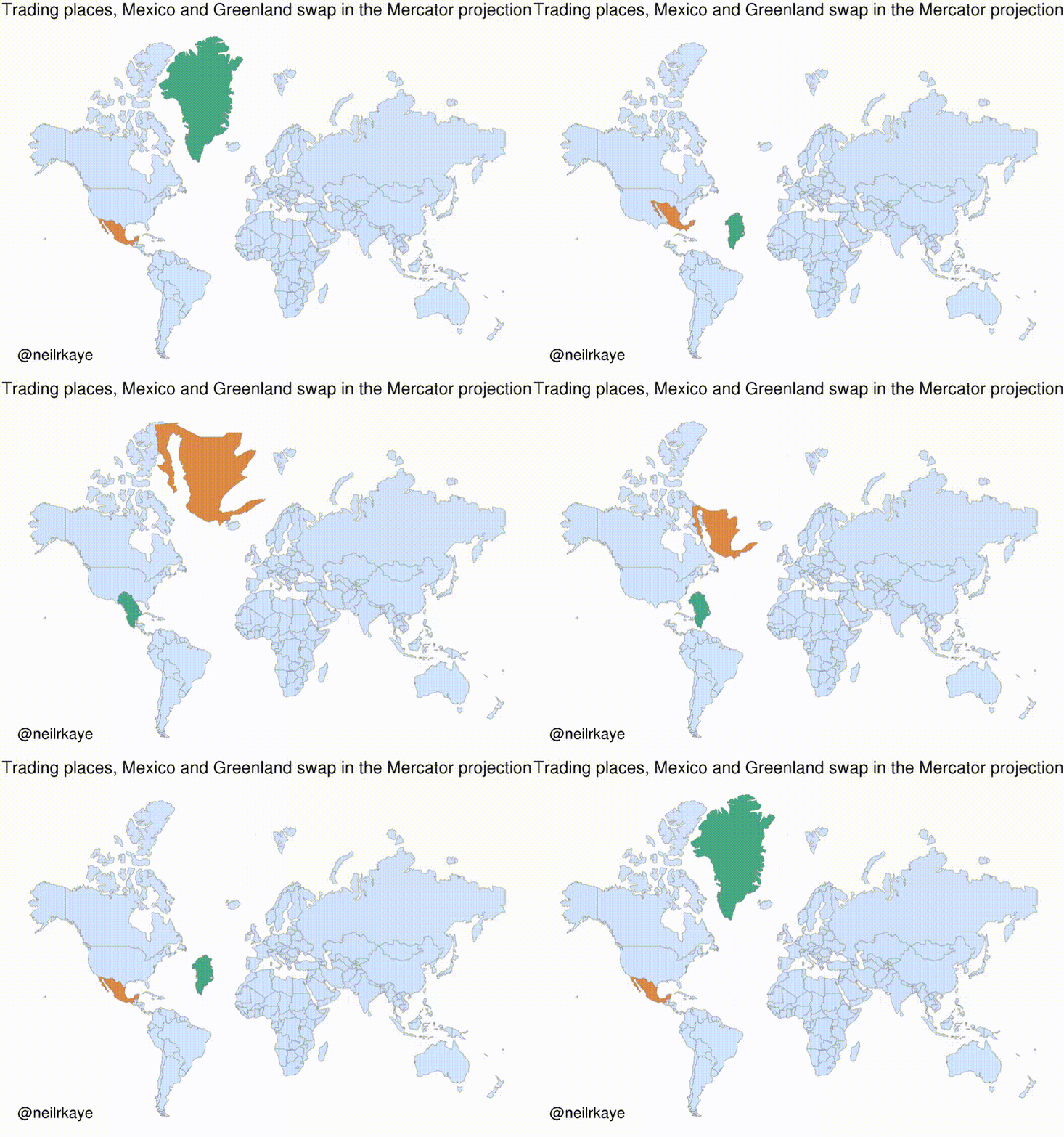
We tend to make inferences about relationships between the objects that we see in ways that bear on our interpretation of graphical data, for example. Arrangements of points and lines on a page can encourage us—sometimes quite unconsciously—to make inferences about similarities, clustering, distinctions, and causal relationships that might or might not be there in the numbers. Sometimes these perceptual tendencies can be honestly harnessed to make our graphics more effective. At other times, they will tend to lead us astray, and must take care not to lean on them too much.

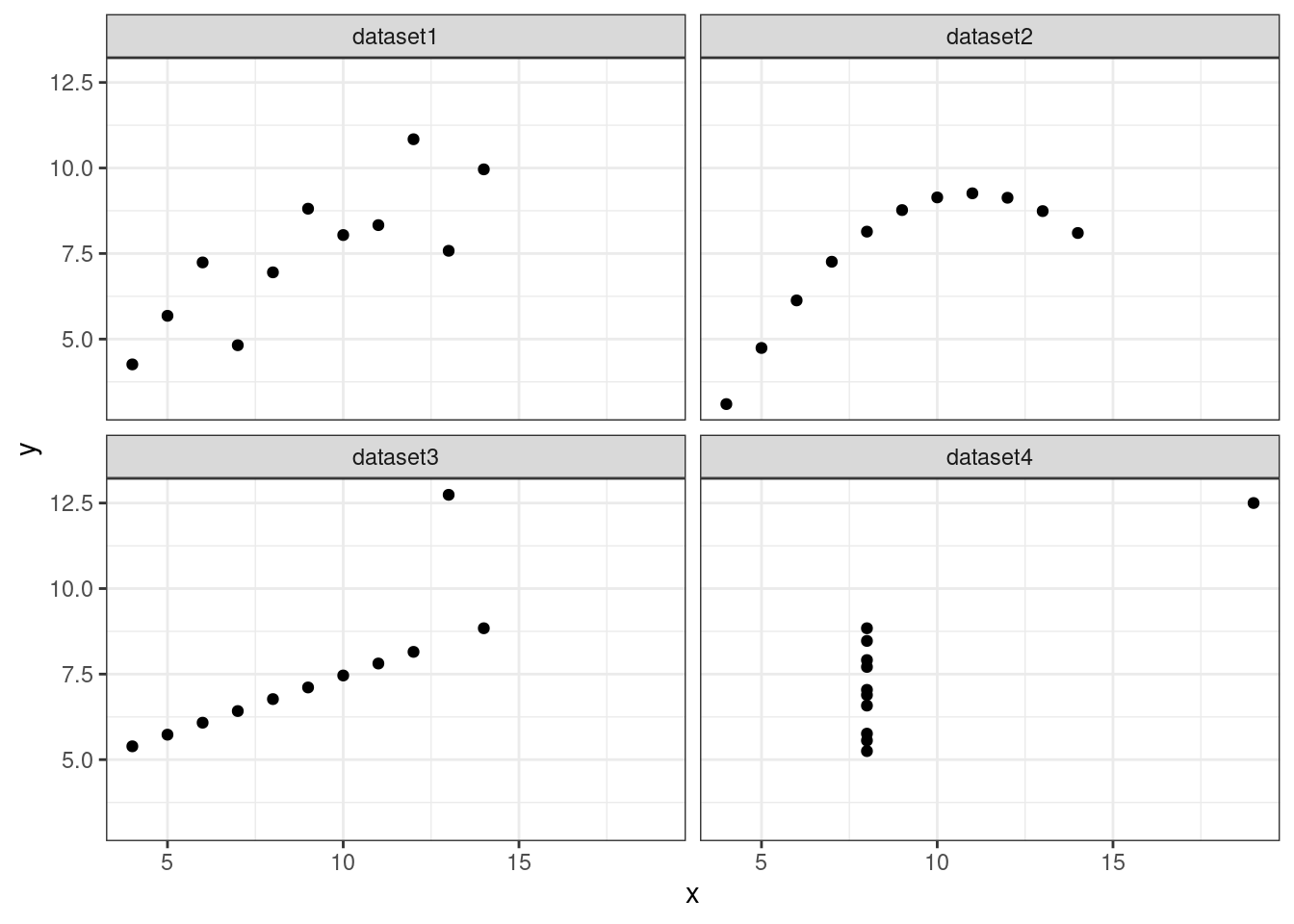
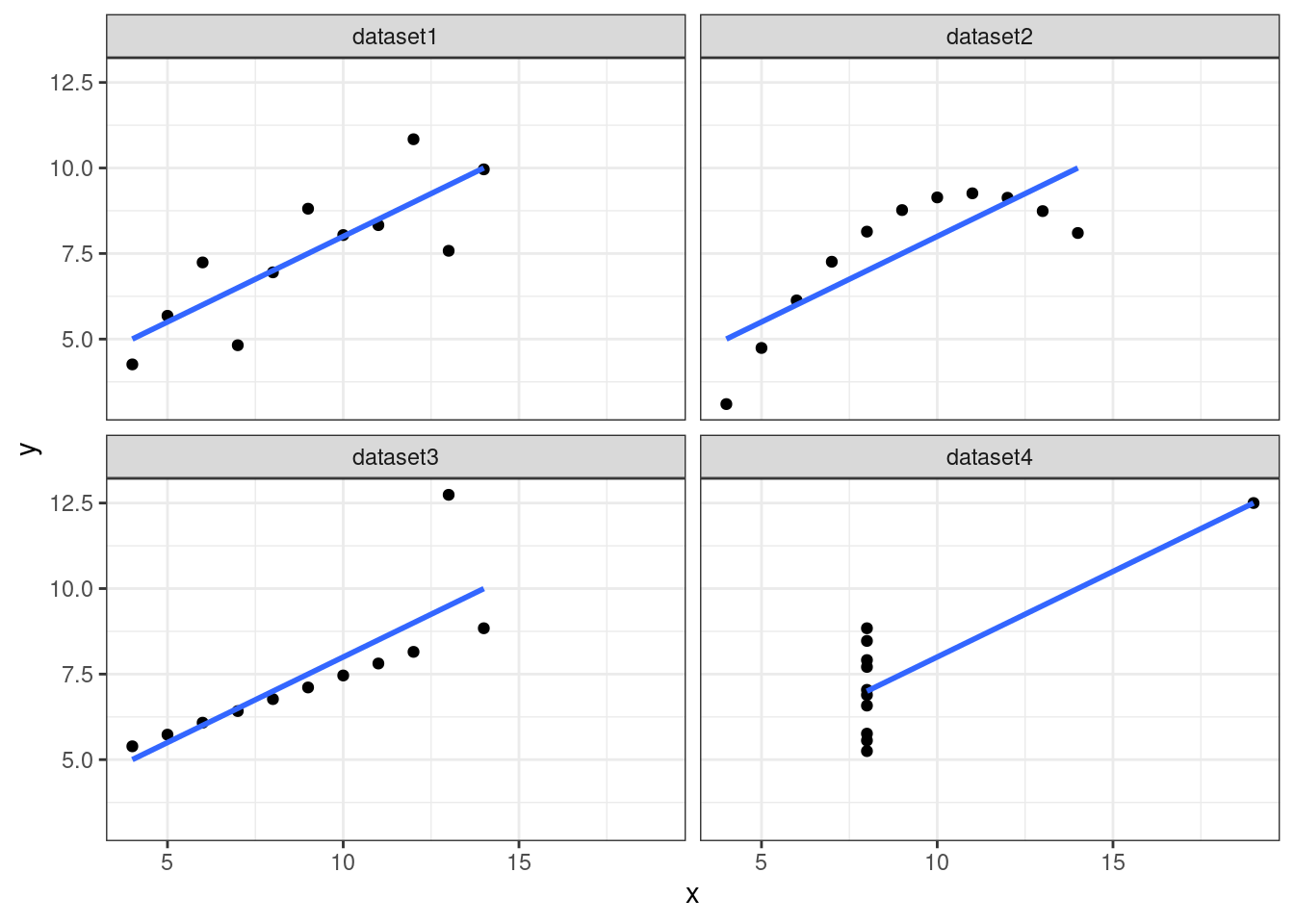
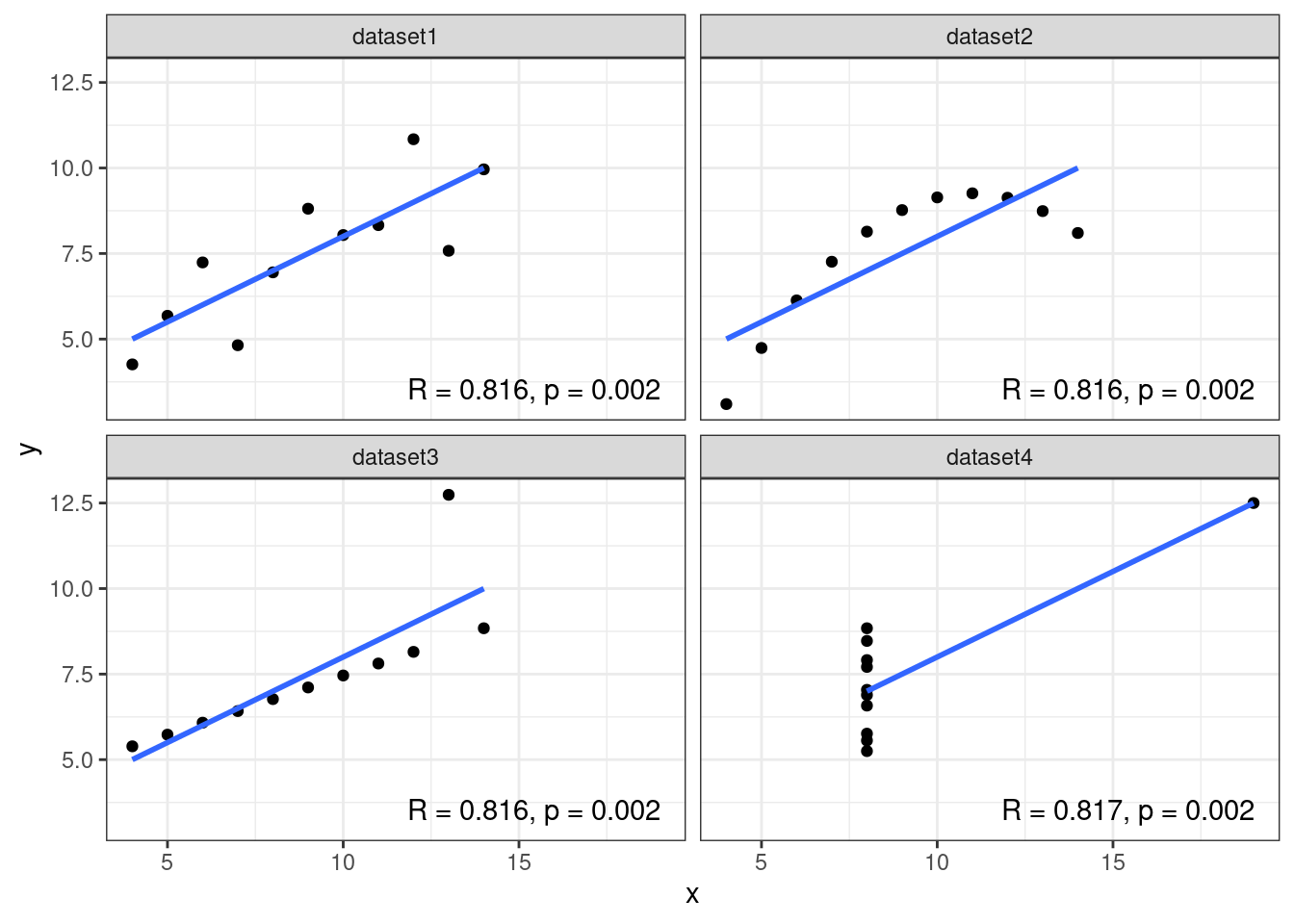
Anscombe’s quartet

Code
library(tidyverse)
library(glue)
library(gt)
# reshape anscombe data in tidy format
ans <- 
  anscombe |> 
  as_tibble() |> 
  pivot_longer(x1:y4) |> 
  mutate(dataset = case_when(str_detect(name, "1") ~ "dataset1",
                             str_detect(name, "2") ~ "dataset2",
                             str_detect(name, "3") ~ "dataset3",
                             str_detect(name, "4") ~ "dataset4")) |>
  mutate(xory = ifelse(str_detect(name, "x"), "x", "y")) |> 
  select(-name) |> 
  pivot_wider(names_from = xory, values_from = value, values_fn = list) |> 
  unnest(cols = c("x","y")) 

# Define a function to make labels for plots
labler <- function(rsq,pval) glue("R = {rsq}, p = {pval}")

# generate linear models, extract p-vals and rsq; generate labels
ans_sum <- 
  ans |> 
  group_by(dataset) |> 
  nest() |> 
  mutate(linmod = map(data, \(data)
                      lm(y~x, data = data)),
         linmod_s = map(linmod, summary),
         rsq = map_dbl(linmod_s, \(sum) round(sqrt(sum$r.squared),3)),
         pval = map_chr(linmod_s, \(sum) scales::pvalue(sum$coefficients[2,4])),
         label = map2_chr(rsq, pval, labler))
ans_plot <-
  ans |> 
  ggplot(aes(x = x, y = y))  +
  geom_point() +
  facet_wrap(.~dataset, nrow = 2) + 
  theme_bw()

ans_plot

Anscombe’s quartet

Code
ans_plot + 
  geom_smooth(method = "lm", se = F)

Anscombe’s quartet

Code

ans_plot + 
  geom_smooth(method = "lm", se = F) + 
  geom_text(inherit.aes = F, data = ans_sum,
            aes(x = Inf,y = -Inf, label = label),
            hjust = 1.1, vjust = -1) 

Illustrations like this demonstrate why it is worth looking at data. But that does not mean that looking at data is all one needs to do. Real datasets are messy, and while displaying them graphically is very useful, doing so presents problems of its own. As we will see below, there is considerable debate about what sort of visual work is most effective, when it can be superfluous, and how it can at times be misleading to researchers and audiences alike.

Takeaway

Visualizations play a key role in how we understand the world around us.

  • We can use figures to tell a story
  • On the flip side, we can use figures to advance a false narrative

For both reasons, it is important that we learn how to make and consume figures!

Principles for data visualization

All data visualizations map data values into quantifiable features of the resulting graphic.

Some practical examples

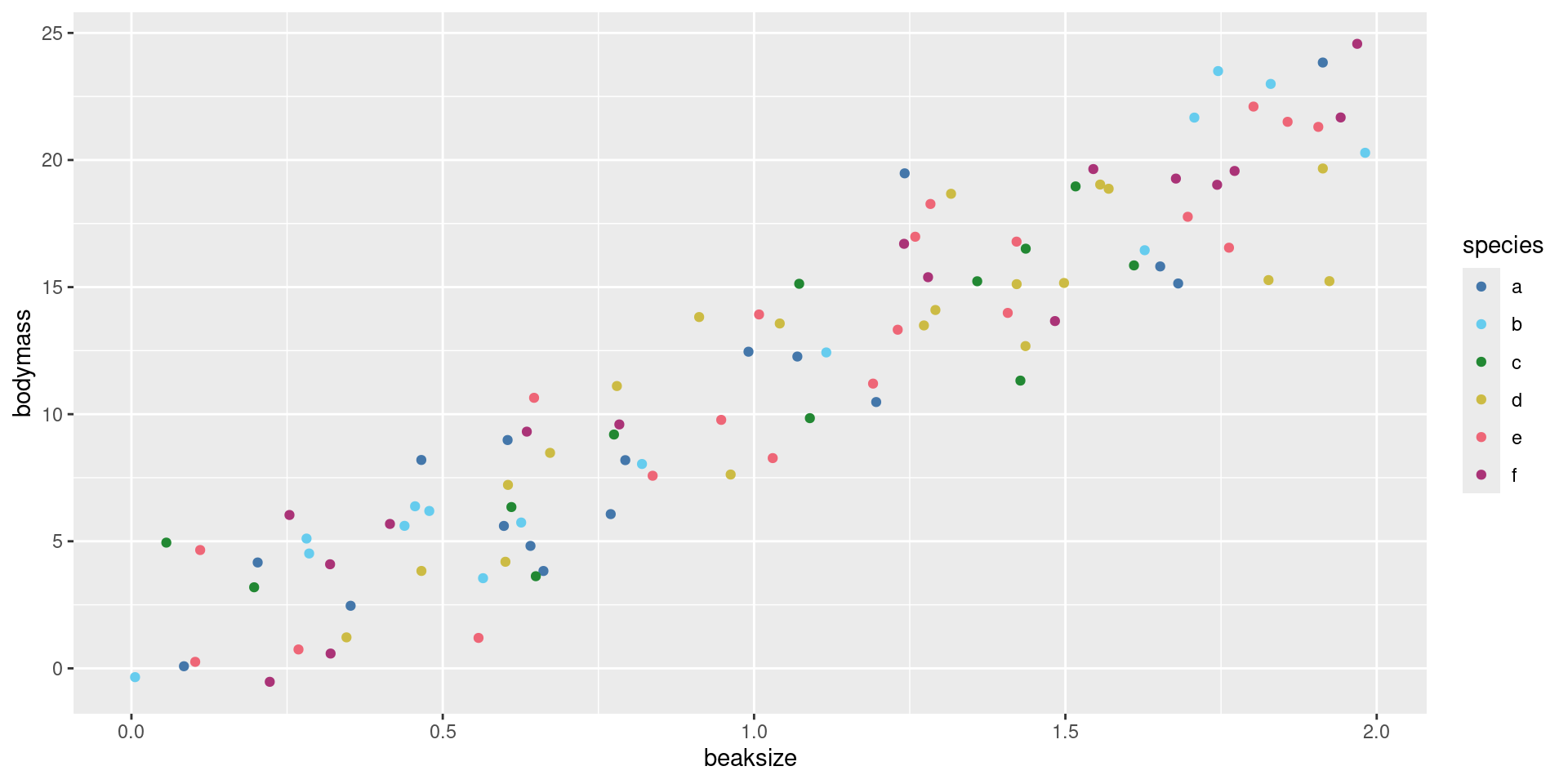
We’ll next explore potential visualizations for this simple dataset:

# A tibble: 100 × 3
   beaksize bodymass species
      <dbl>    <dbl> <chr>  
 1  0.991     12.5   a      
 2  0.00583   -0.346 b      
 3  0.415      5.68  f      
 4  1.54      19.6   f      
 5  0.102      0.256 e      
 6  1.01      13.9   e      
 7  1.43      11.3   c      
 8  0.837      7.58  e      
 9  0.254      6.03  f      
10  0.557      1.20  e      
# ℹ 90 more rows

Maps

Mapping features of the data onto aesthetics of a graphic

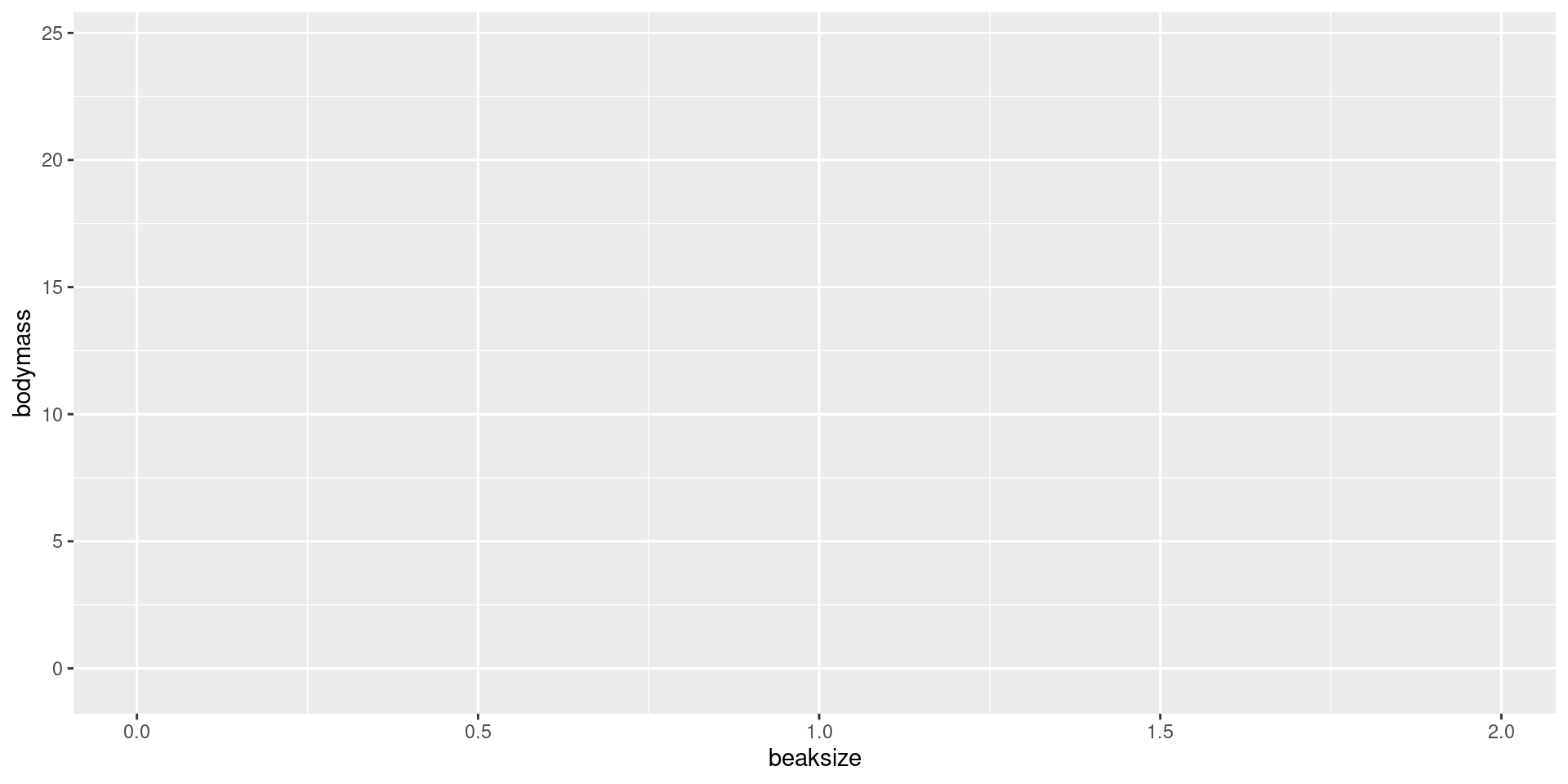
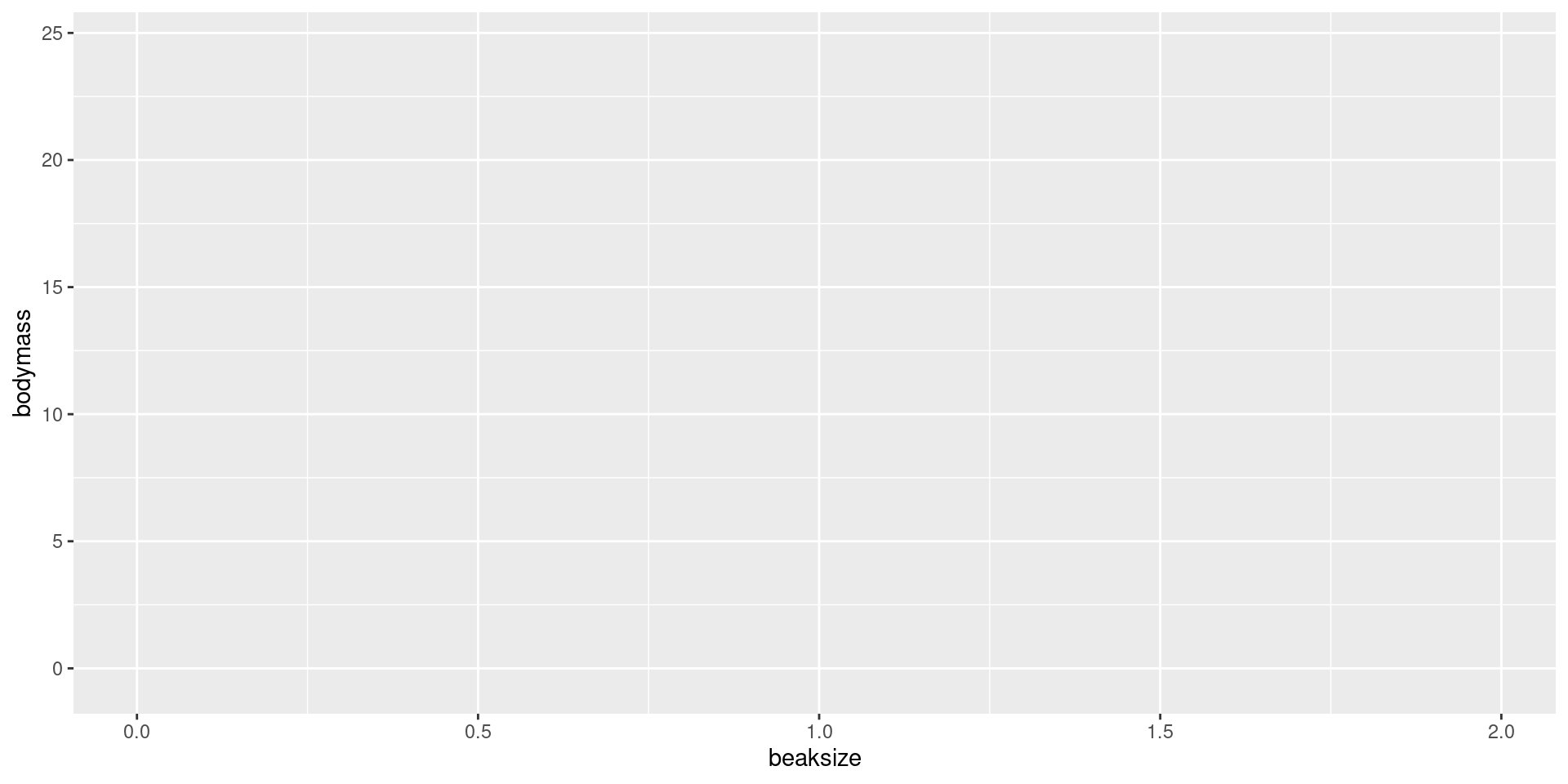
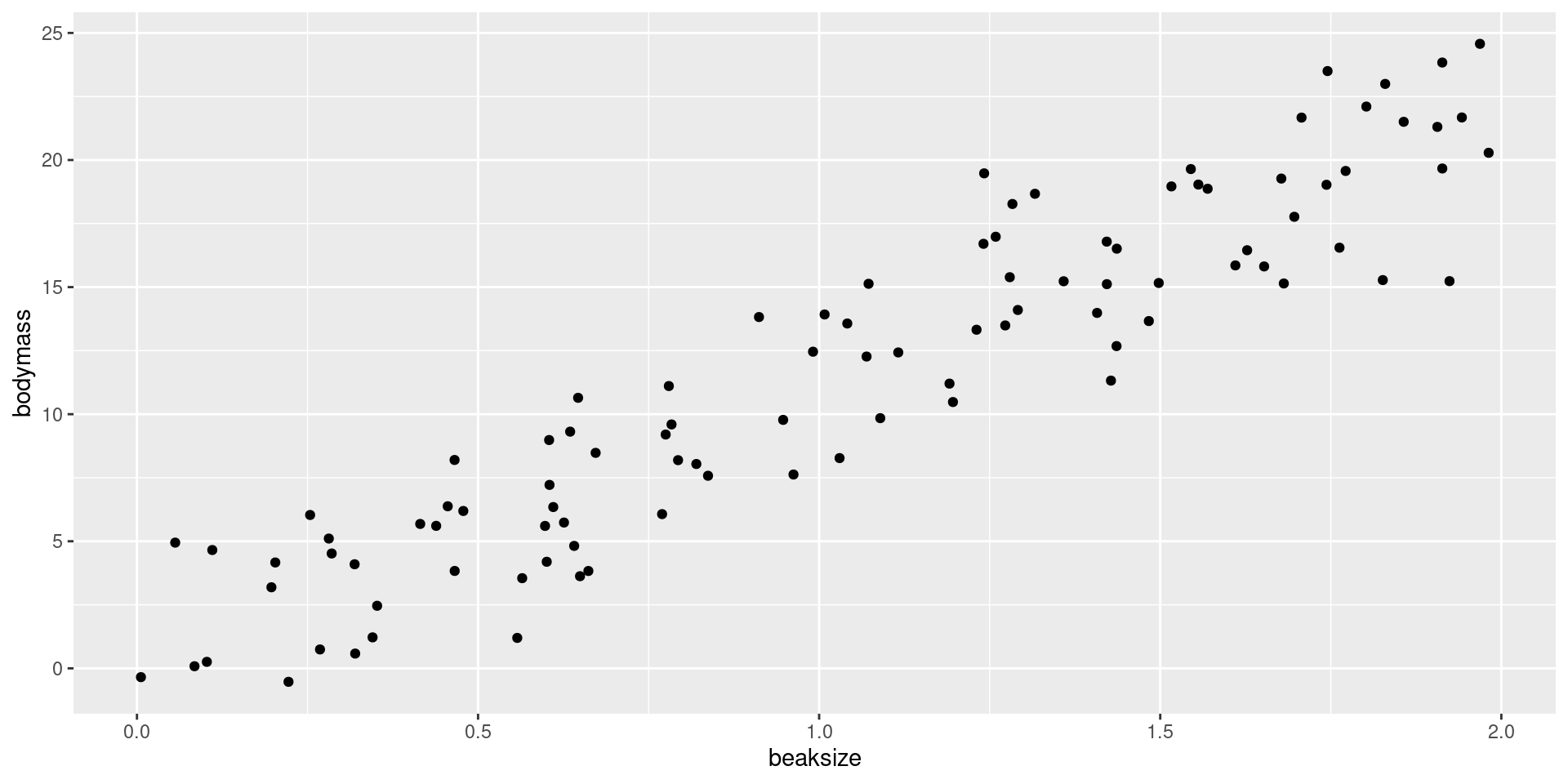
e.g. We can map beak size on to the X-axis and body weight onto the Y-axis:

For any given data set, we can have several different mappings

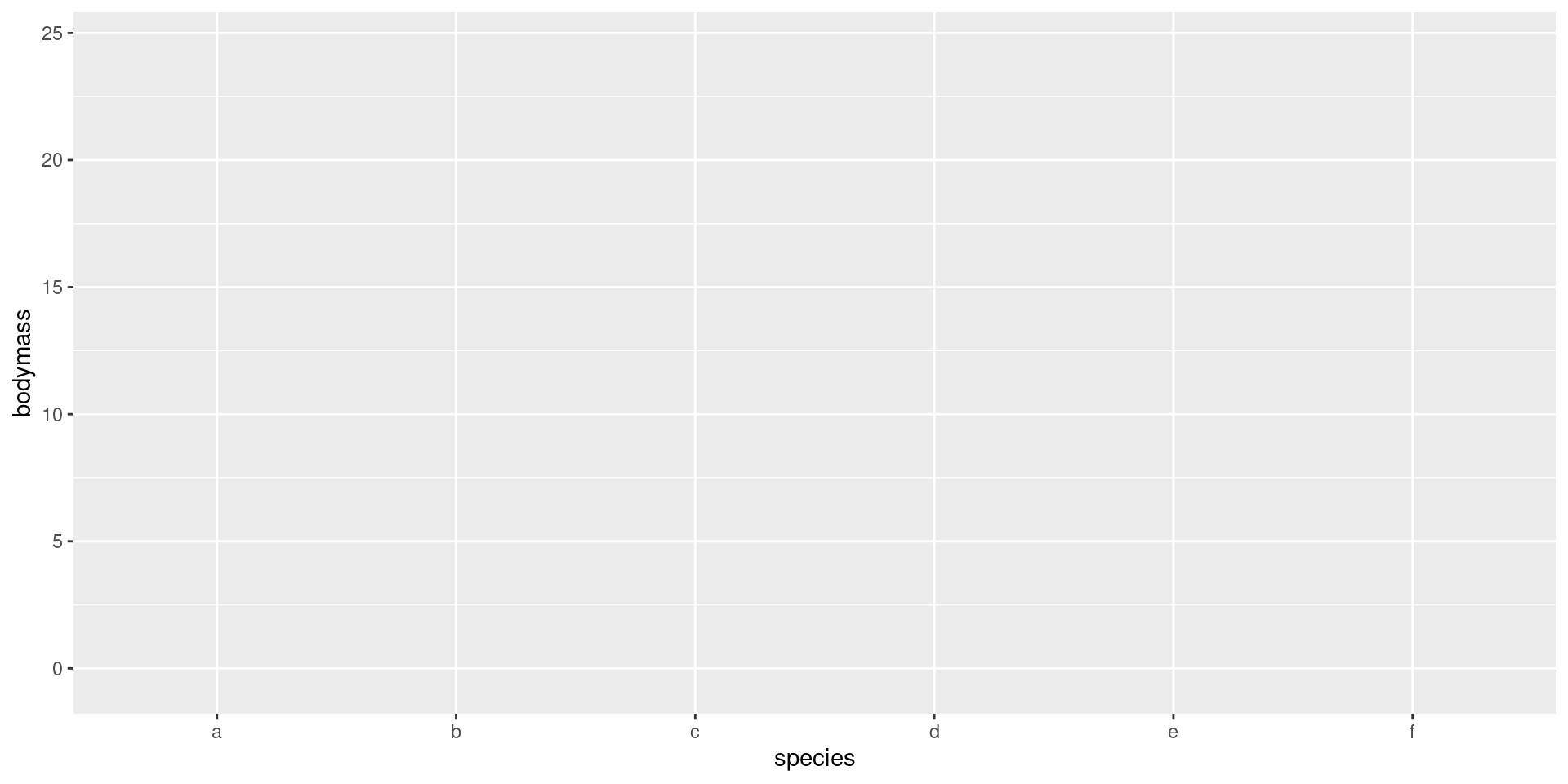
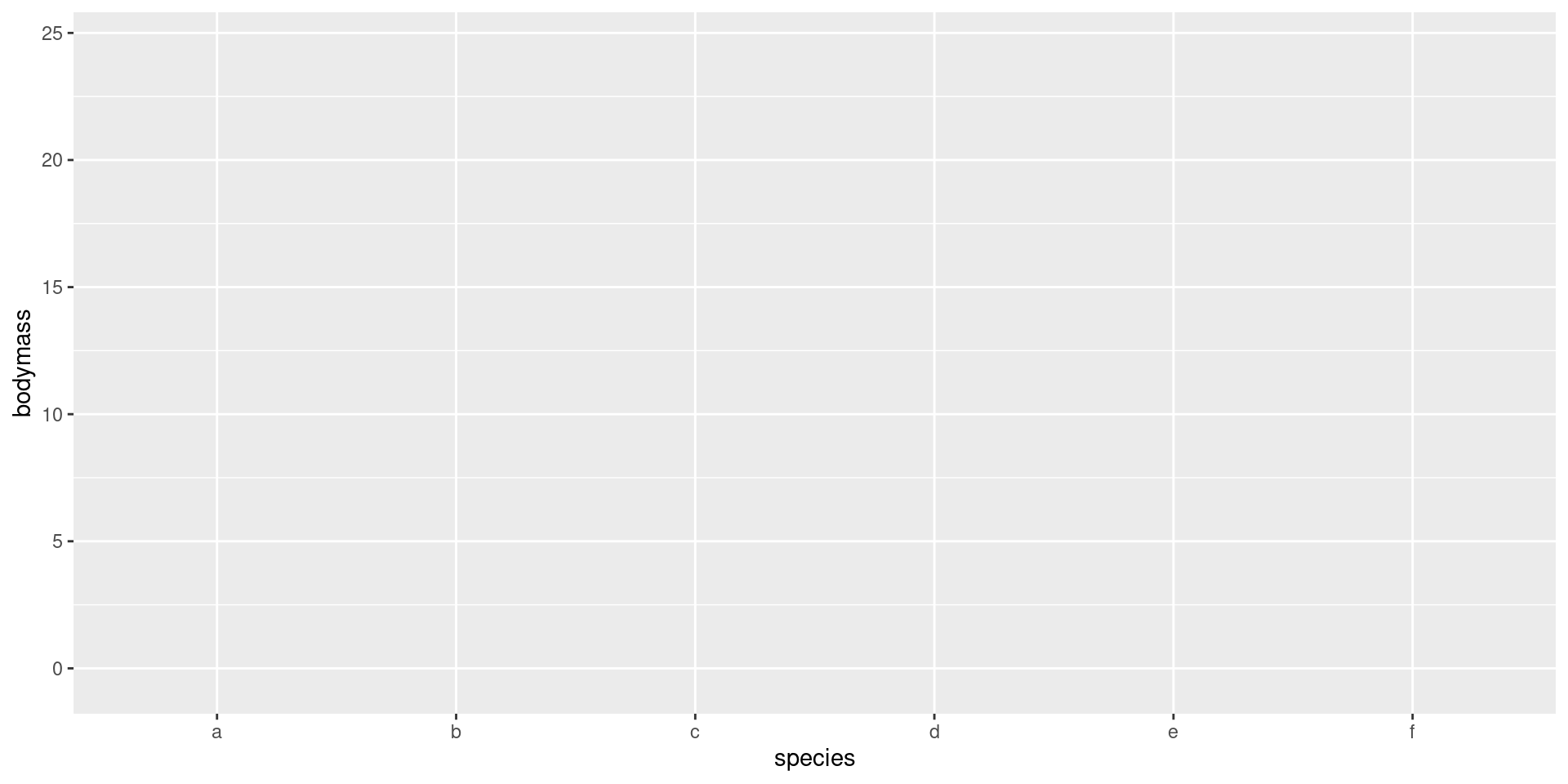
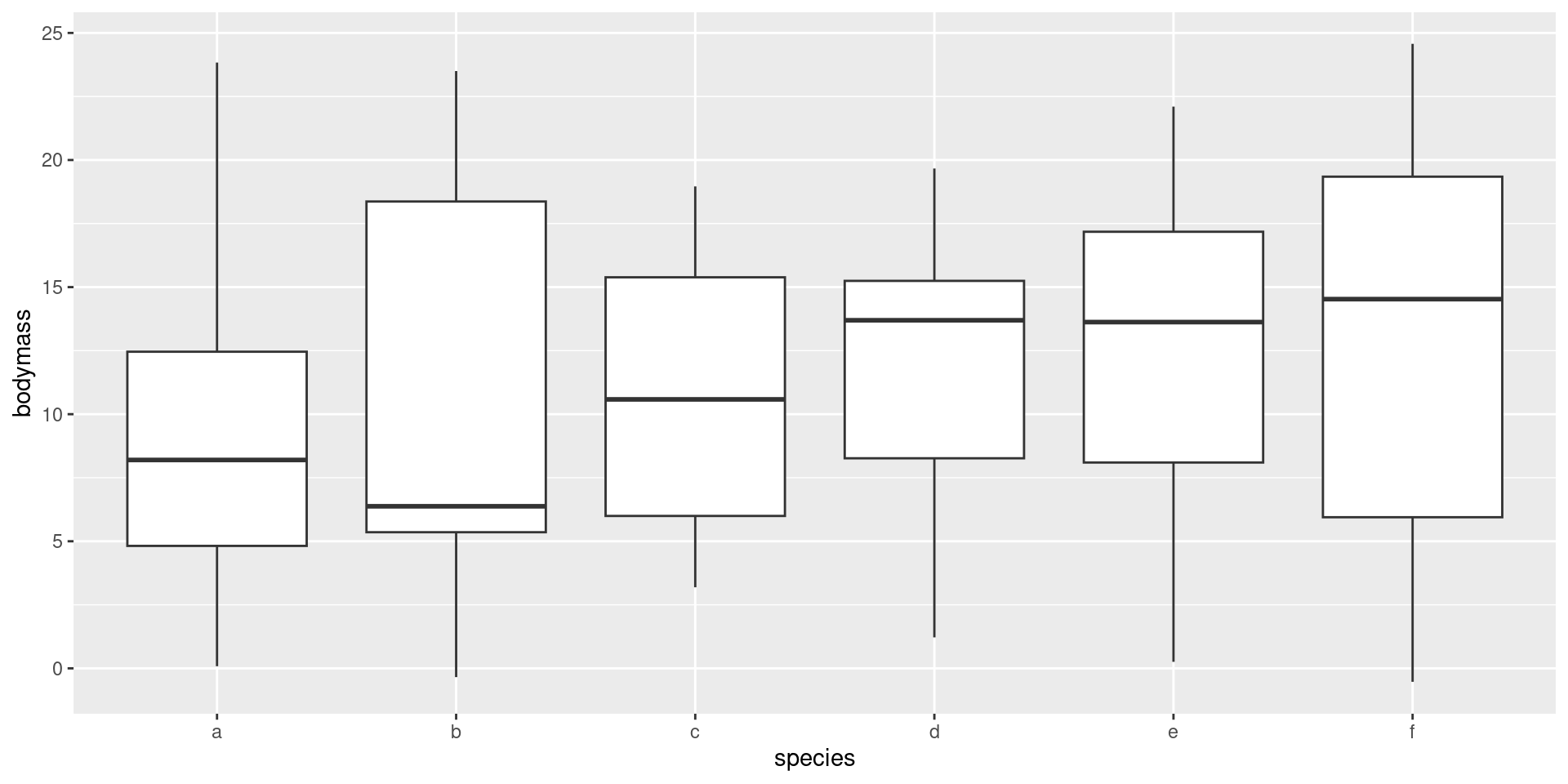
e.g. We might instead map species identity on to the X-axis and body mass to the Y-axis:

Geometries

For a given set of mappings, we can use different geometries to communicate a result

e.g. If we map beak size on to the X-axis and body weight onto the Y-axis, we need what geometry to show the relationship?

For a given set of mappings, we can use different geometries to communicate a result

If we had mapped species identity on to the X-axis and body mass to the Y-axis, what geometry would we need?

If we had mapped species identity on to the X-axis and body mass to the Y-axis, what geometry would we need?

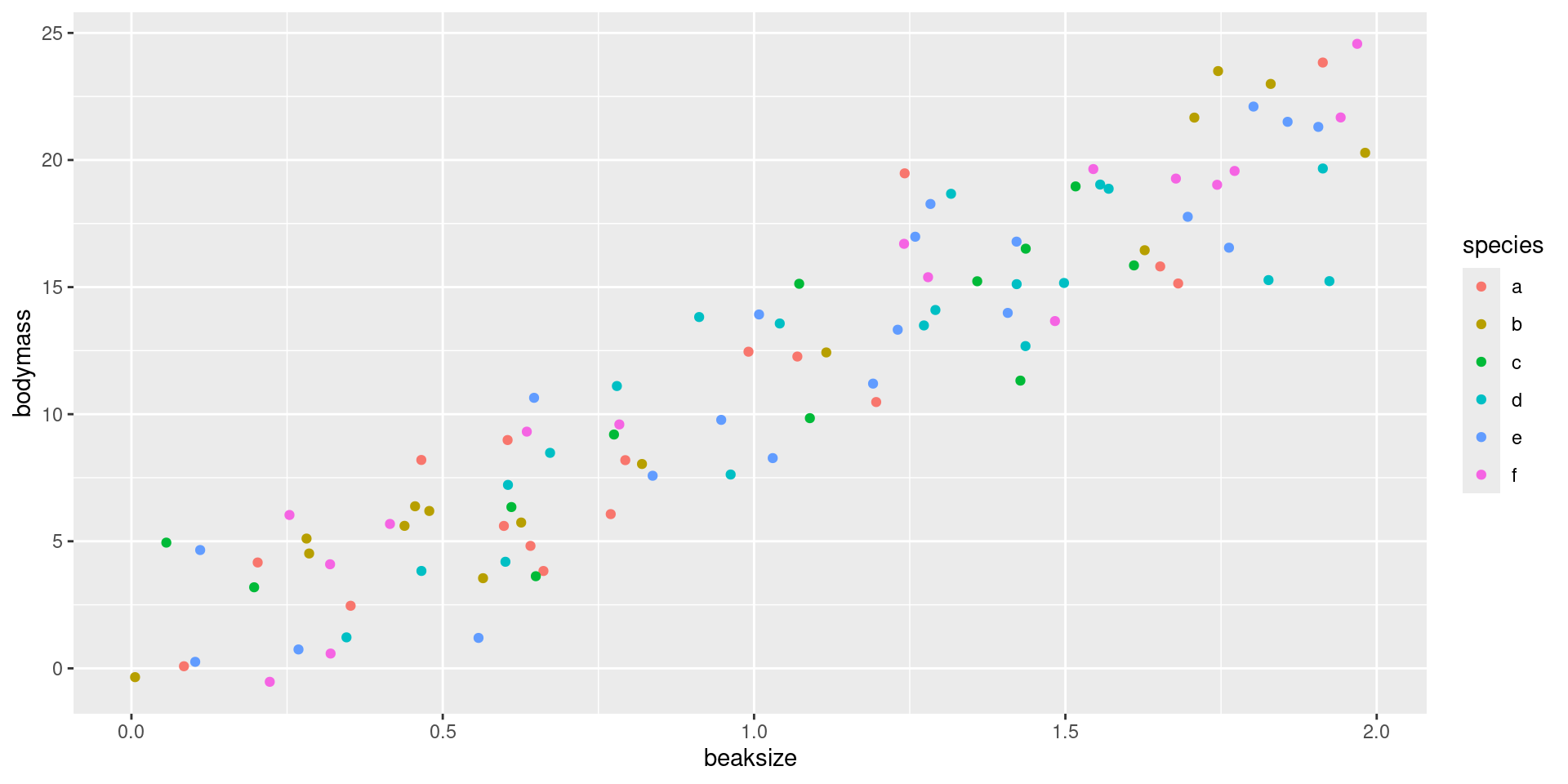
We can communicate additional information through additional mappings

e.g. If we map beak size on to the X-axis and body weight onto the Y-axis, we can also map species identity to color

We have lots of choices for how to map information!

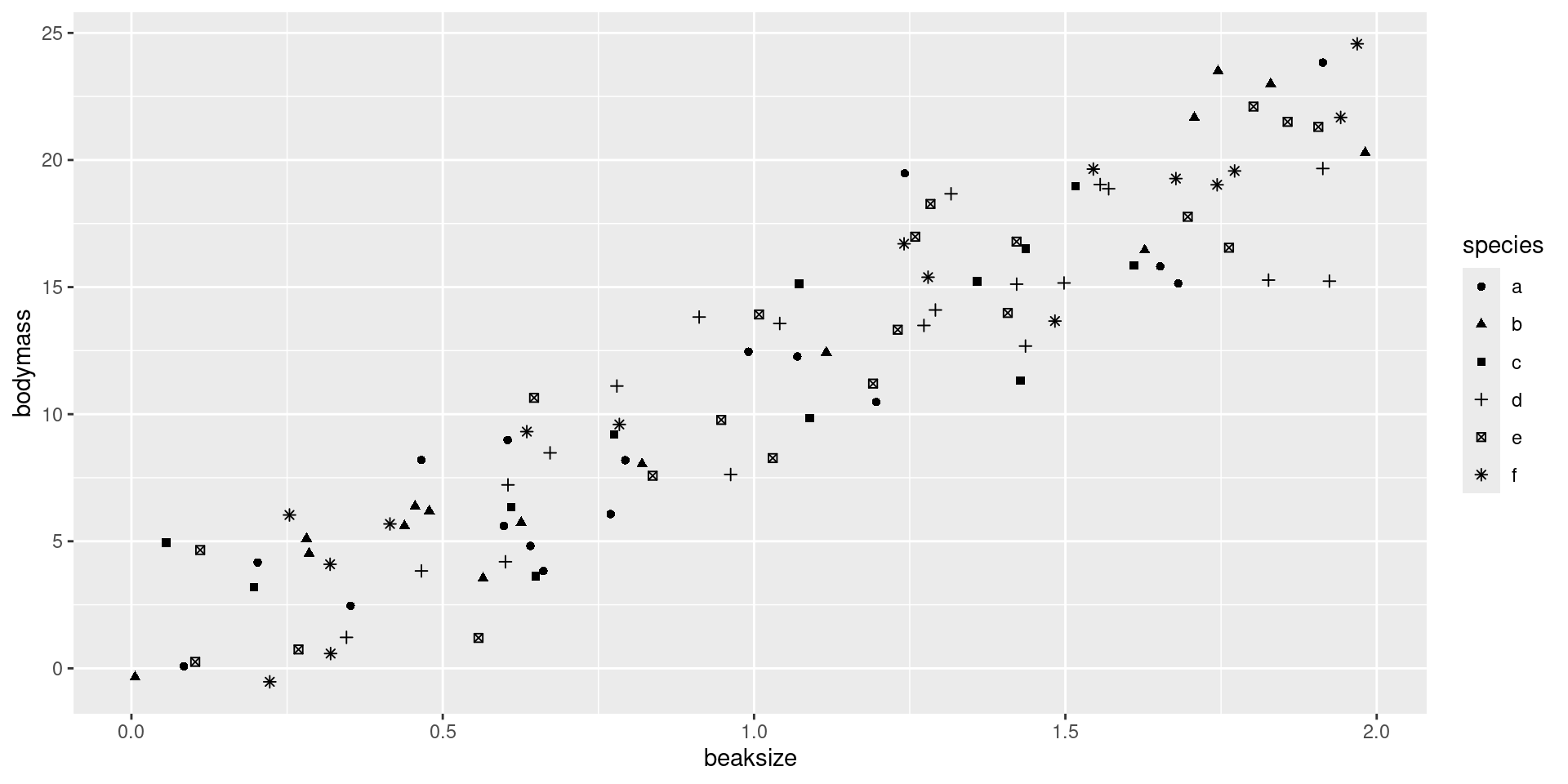
e.g. We could map species identity onto point shape instead…:

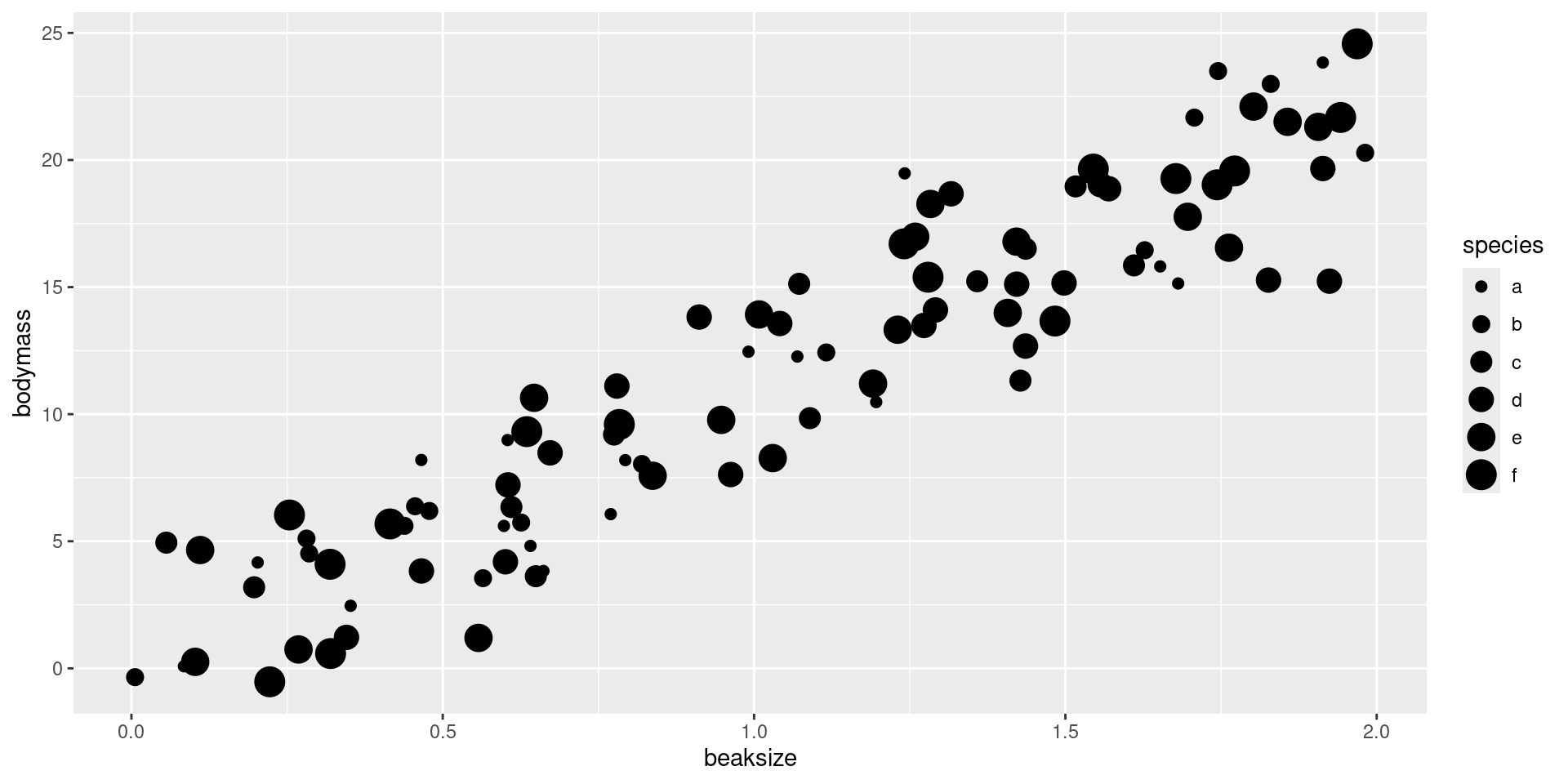
We could even map species onto point size.

Code
d |> 
  ggplot(aes(x = beaksize, y = bodymass, size = species)) +
  geom_point()

Scales

Once we decide on mappings and geometries, we need to decide on a scale

e.g. If we decide to show a scatterplot with colors separating species, what color should each species represent?

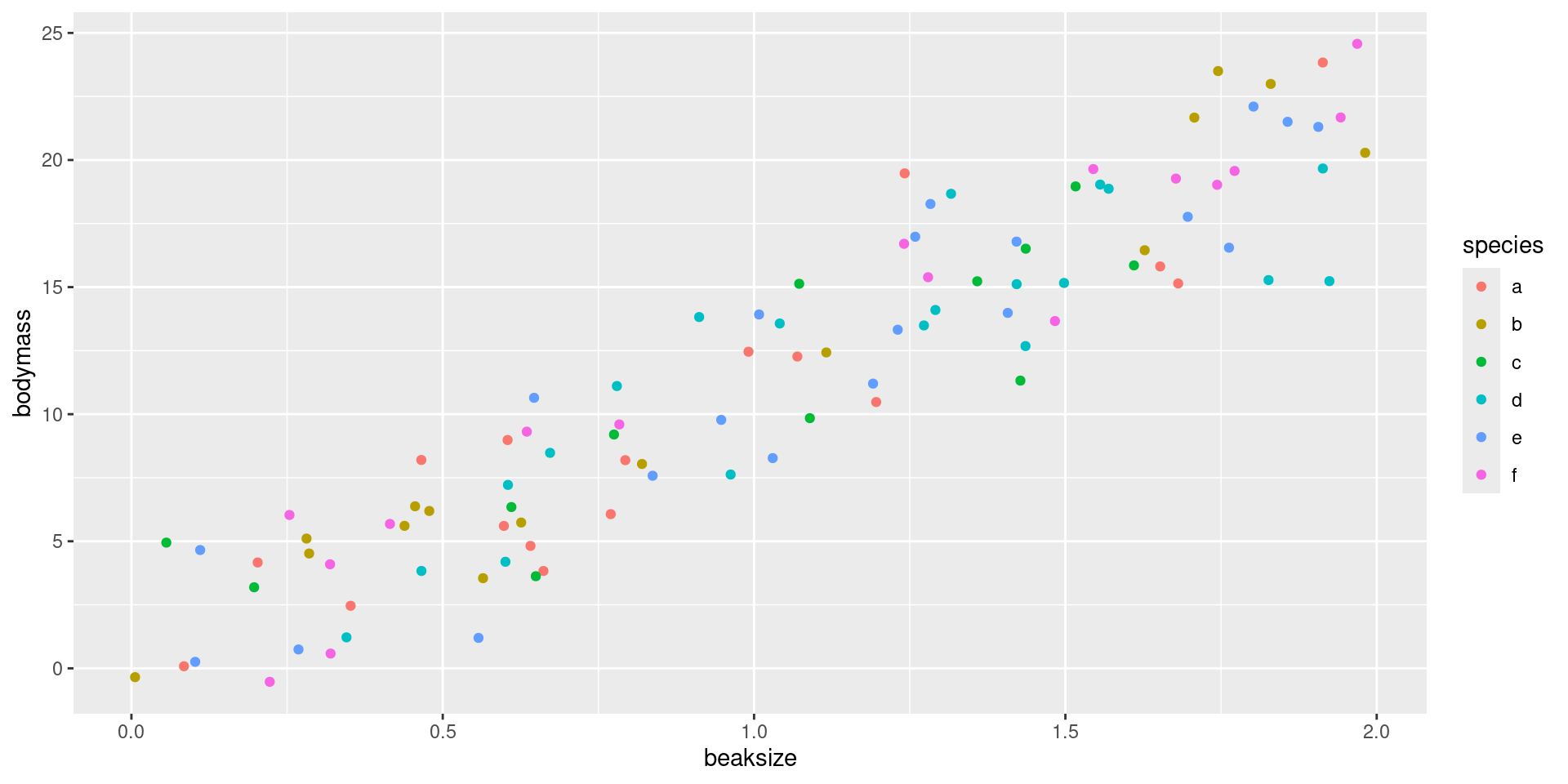
Default scale:

Why might the default scale not be optimal?

In some cases, we might want a different scale – e.g. one that is accessible to colorblind viewers, or perhaps we want each species’ color to evoke the species itself

Practical implementation

We will explore with the palmerpenguins dataset (information about penguins from islands in the South Ocean near Antarctica)

Let’s use these data to make a scatterplot of bill length on the X-axis and body mass on the Y-axis

Next, use a geom_ function to define the geometry

Your turn

Task: Make boxplots with Species arranged along the X-axis and the Y-axis showing body mass.

Mapping additional data

We can separate species by color by adding an additional mapping:

Setting the scale

What if we don’t like the default red/green/blue color scheme? Time to set a new scale!

Time to explore!

With a partner, explore the penguins dataframe, and think of what relationships you might want to show in a graph.

  • Without any code, identify what information you want to map on to different axes.
  • Without any code, what geometry do you want to use for communcating this relationship?
  • Without any code, what scale would you like to use for this figure?
  • Write some code to make this figure.

Fun aside: Simpson’s paradox

  • plot of bill length vs. depth

Mapping features of the data onto aesthetics of a graphic

  • How to choose the right map?

    • The map should be capable of encoding the data
    • e.g. Shapes are a poor choice for encoding quantitative variables
    • The map should be effective at encoding the data
    • The subject of research on how brains work

Identifying the geometry for the plot

  • The geometry determines how the data are shown
  • In ggplot, you can choose from a large number of geom_* functions, depending on whether you wish to show points, lines, boxplots, histograms, etc.

How to choose the right scale?

  • The scale should be capable of encoding the data you are presenting
  • e.g. If you have data on a dozen species, color might be a poor choice because human brains are not good at distinguishing between a dozen colors.
  • The scale should be efficient at encoding the data you are presenting
  • E.g. Diverging data (e.g. “least likely to most likely”) best represented by a divergent palette
  • The subject of research on how brains work

Research on how humans digest visual information

Resources to help explore potential aesthetics and mappings:

  • ggplot2 “Cheat Sheet”: link
  • R Graphics Cookbook: link

Project organization and management

Start thinking in “nested hierarchies”

Alternative to viewing directory structures

Code
fs::dir_tree("~/gklab", 0)
~/gklab
├── Template Collab Letter.docx
├── admin
├── advice-on-running-labs
├── coffee-expt-design.R
├── gaurav
├── lab-guidebook
├── lab-manual
├── lab-pics
├── lab-website
├── lsu_generic_budget_justification_01-2024.docx
├── lsugenericbudget_1_24.xlsx
├── mentees
├── misc
├── nsf1030_1-24_.xlsx
├── pdfs
├── research
├── talks
├── teaching
├── templates
└── test-lvcomp.html
Code
fs::dir_tree("~/gklab/research", 0)
~/gklab/research
├── CfoC
├── b-rapa-drought
├── caring
├── coastalprairie
├── coffee-culture
├── dragnet
├── dragnet-annuals
├── dragnet.zip
├── ecoevoapps
├── ecoevoapps-shinylive
├── ecoevoapps-sl-quarto
├── fastplants-drought
├── grants
├── julia-test
├── monodominance
├── natgeo-grant
├── ngoma-microbiome
├── other-projects
├── papers
├── pedagogy
├── peer-review
├── primer-soilmicrobes
├── qcb-survey
├── quartoutils
├── s-partitus-behavior
├── sculptors
├── sculptors-psf
├── sculptors-sequences
├── sculptors_with_julia
├── sculptors_with_julia-old
├── sentiment
├── sentiment-survey
├── sentiment-survey.pdf
├── talks
├── trait-psf-metaanalysis
└── urban-pheno
Code
fs::dir_tree("~/gklab/research/trait-psf-metaanalysis/", 0)
~/gklab/research/trait-psf-metaanalysis/
├── _quarto.yml
├── admin-files
├── code
├── data
├── figures
├── manuscript
├── models
├── predict_hfa.csv
├── stats
└── trait-psf-metaAnalysis.Rproj

Why think about file structure?

  • Every file is stored somewhere on your computer
  • If you want to analyze it in R (or other programs), you will need to read it into memory
Code
read.csv("path/to/file.csv")
  • Unless managed properly, files are likely to be in different places on different computers.
    • Major problems for collaboration, reproducing analyses, etc.

How file paths work

  • Each file path has the same structure:

parent-directory/sub-directory/sub-sub-directory/file.csv

  • We can describe file paths using absolute or relative notation.

Absolute paths

Absolute notation: the “starting point” is the “root” directory in your computer

Exercise:

  • Open RStudio and tab over to the “Terminal” pane on the bottom
    • If you are working in an RProject, close the project.
  • Enter the command cd
  • Enter the command pwd
  • This is the starting point for all absolute paths you use on your computer.
    • Notice: Everyone in this room will have a different path!
    • Using absolute paths makes it harder to share code

Relative paths

Relative notation: Provide the path to a file relative to a “standard” starting point.

Exercise

  • Create a new Rstudio project, and call it “bioinformatics-workshop”
  • Save it on your Desktop for easy access
  • As you create it, select the “create with a git repository” checkbox - we will return to this.
  • In the terminal enter the command pwd
  • Notice that the first few directory names will be different, but after Desktop/, everyone should be in the bioinformatics-workshop subdirectory.

Organizing files within projects

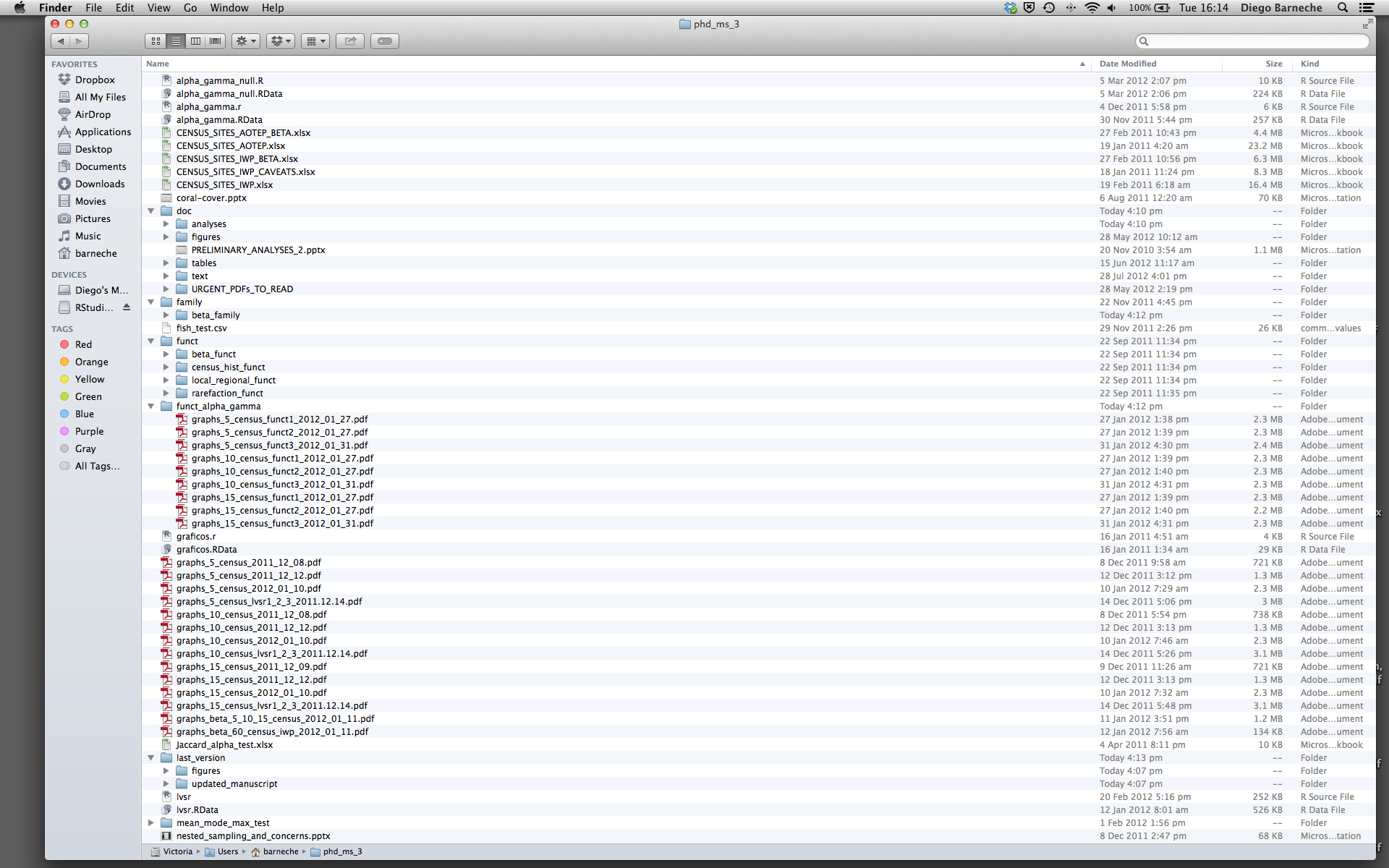
What are some problems with this organization?

Some heuristics for good management

  • Hard and fast rules don’t always work - think about the needs of each project and decide accordingly

  • All work related to a given project should be housed within one directory (organize with sub-directories)

  • Many projects will need a few standard subdirectories: data, code, writing, admin, etc.

  • Raw data should be read-only (never change raw data)

  • Clean data should be generated through code (don’t hand-change files)

  • Carefully consider your naming scheme, and make it machine readable.

    • Bad example: FINAL-figure2.png, FINAL-figure2-NEW.png
    • Better example figures/figure2-20250324.png, figure/figure2-20250326.png

Exercise

  • Think about the different file types you have generated for your project so far.
  • Where are these files stored?
  • What would you have to do to “archive” these files for paper submission, or to share with your advisor?
  • When you sit down to analyze your data, where/how do you start?

Writing with Quarto/Markdown

Markdown overview

  • Markdown is a simple language that allows us to write in “plain” text and generate “rich” documents in Word, PDF, or HTML format.
    • e.g. Adding *one asterisk* around text generates bold text: one asterisk
    • Adding **two asterisks** around text generates bold text: two asterisks

Markdown exercise

Integrating Markdown with code through quarto

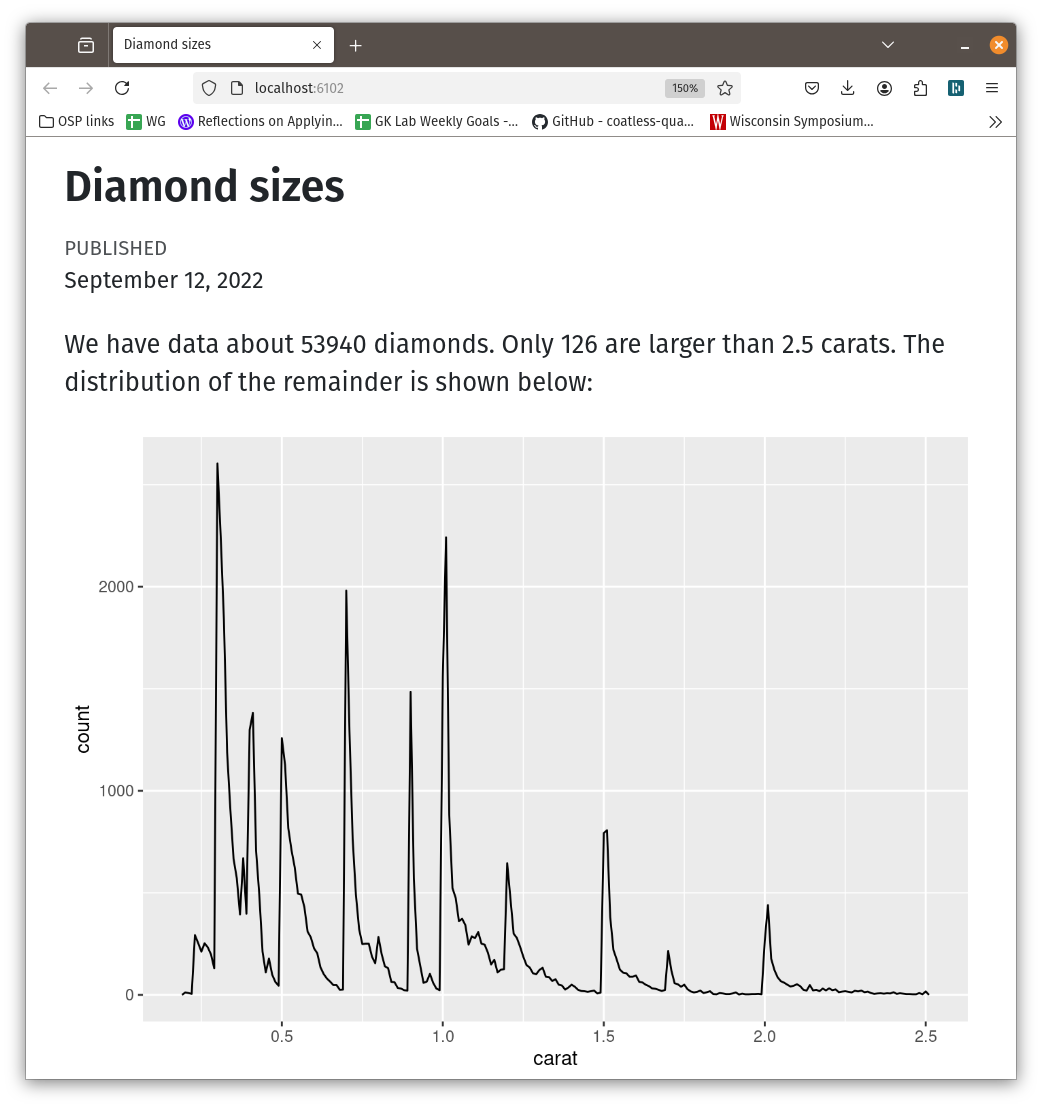
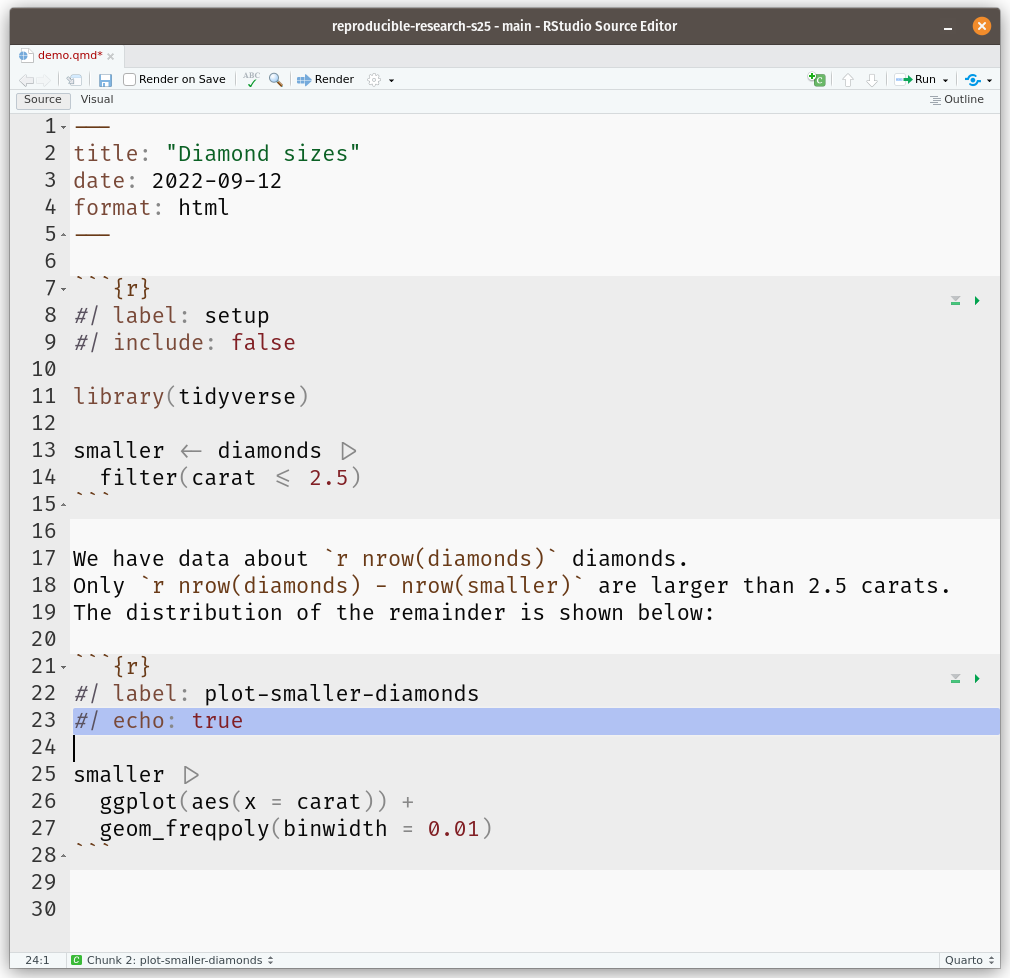
Anatomy of a qmd file

(link to download this file)

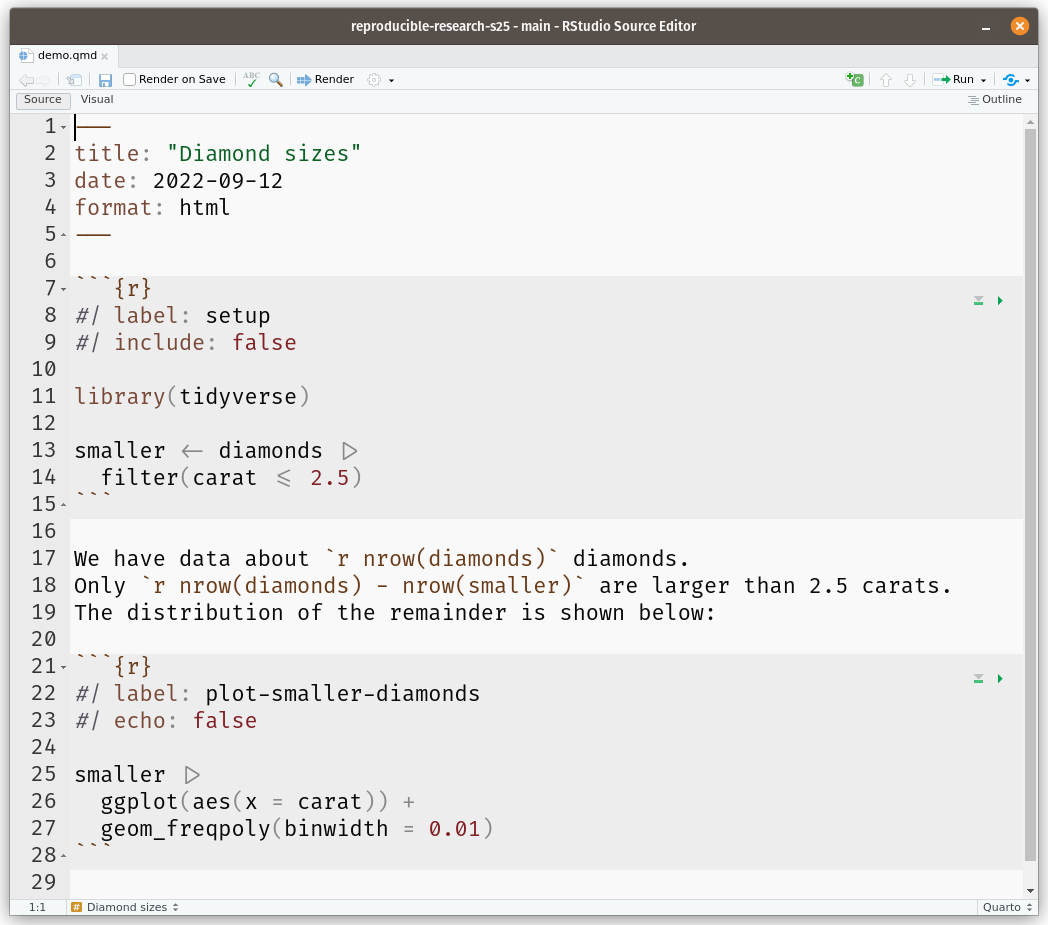
Lines 1–5: “YAML” header - this is the space to add information about your file (title, author, date, additional details).

  • Demarcated by three dashes (---)
  • Always appear in key: value format
  • Lots of possible options – see this guide for details.
    • No need to get overwhelmed by the options for now - but good to keep in mind for future projects.

Lines 7–15: R code chunk

  • Demarcated by three ticks, followed by the programming language name (```{r} {code} ```)
  • Lines 8–9 are options for the R code chunk - these control, e.g. whether the code is run or not, how big figures are, etc.
  • Lines 11–15 are standard R code

Lines 16–20: Text in Markdown

  • This is text meant to be read by humans
  • Can customize how text is rendered, e.g. adding * around a word to italicize: *quarto* becomes quarto
  • Read about additional formatting options here

What to do with qmd files

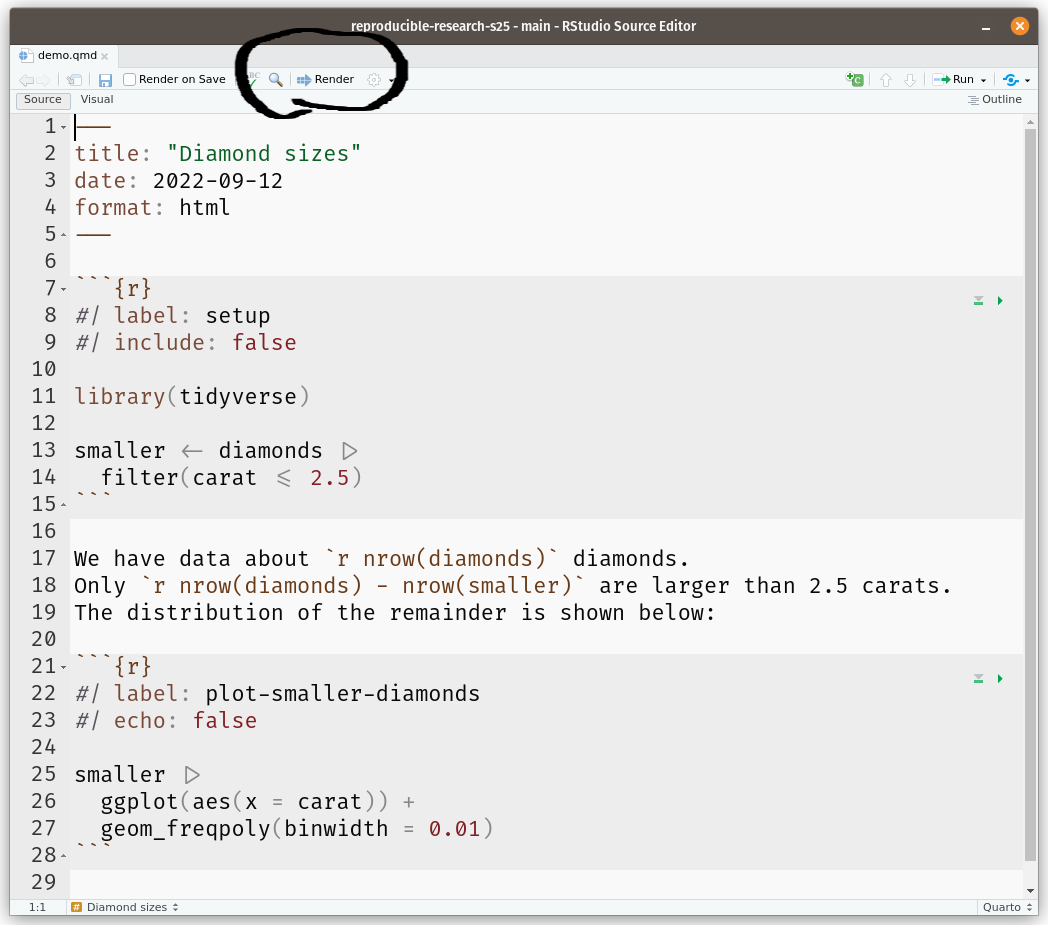
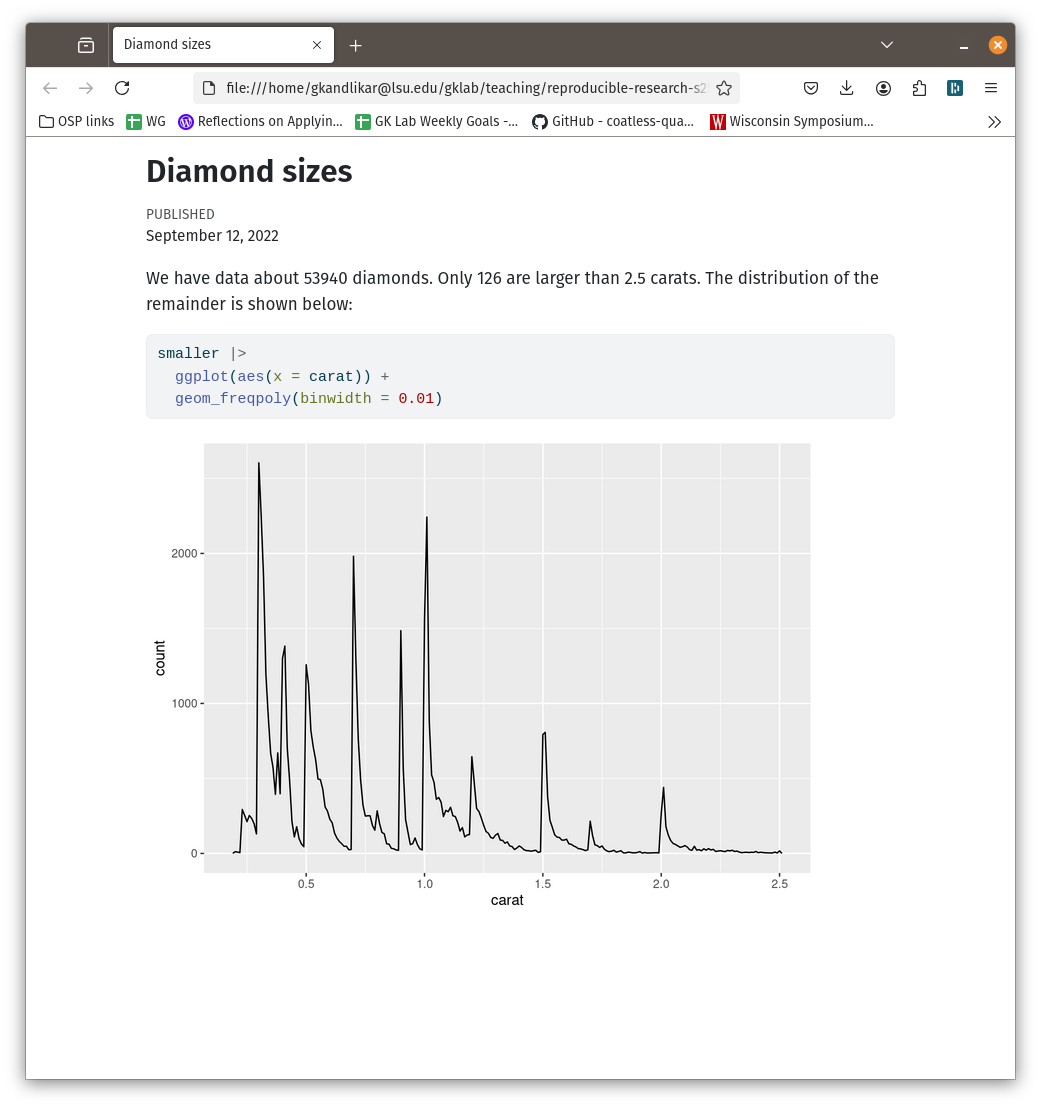
  • Render (i.e. “generate”) into a “public facing” document, with all the source code readily available.
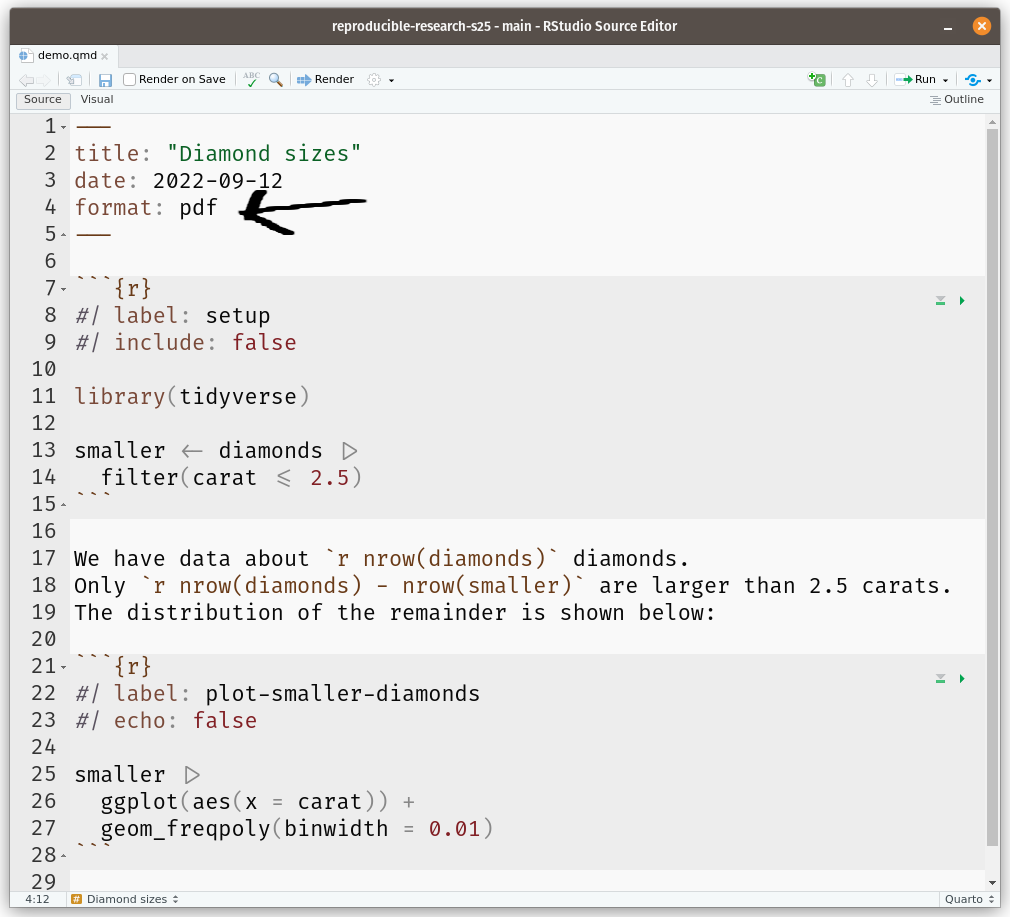
  • Settings for rendering are based on the YAML header of the file

Exercise

  • In the same PRoject, create a new Quarto Document
  • Render the document to HTML and Docx
  • Tweak some of the code and verify that the new results are generated.